Parental control for Windows 10 and 11

Protection that doesn’t stop at the browser.

A Chrome extension watches browser tabs. NESTRA watches all traffic from the computer — including games, launchers, messaging apps and apps with a browser built in.

Start with a free trial. After that, one payment per year.

NESTRA parent dashboard — Network Guard screen with protection scope, the YouTube service and content categories
The real NESTRA Parent v0.10 parent dashboard
Kuba’s computer log · example
  • 21:04steam.exe → cdn.steamstatic.comallowed
  • 21:06Discord.exe → media.discordapp.netallowed
  • 21:12chrome.exe → roblox.comlimit · 12 min left
  • 21:19chrome.exe → betting-site.examplegambling
  • 21:20firefox.exe → DNS-over-HTTPS, filter bypassblocked
  • 21:23msiexec.exe → uninstalling the NESTRA Agentpaused
21:23 — attempt to remove protection. Uninstalling waits for parent approval.
  • Windows 10 and 11
  • Your child can’t uninstall it without you
  • Visible to your child — no hidden mode
  • Email support
Protection coverage

An extension sees the tab. NESTRA sees the connection.

Most “parental controls” for Windows are an extension for a single browser. Your child doesn’t need to be a hacker to get around one — downloading another browser is enough. Here is the difference, without the marketing.

No software can stop everything if your child has full Windows administrator rights — so it is worth giving them a standard account.

Traffic path Browser extension NESTRA Parent
Chrome, Edge, Firefox everyday browsing
Extensionyes NESTRAyes
Incognito mode disables most extensions by default
Extensionno NESTRAyes
A second browser downloaded alongside Brave, Opera GX, a portable version on a USB stick
Extensionno NESTRAyes
Steam, Epic Games Launcher, Roblox stores and chats built into games
Extensionno NESTRAyes
Discord and WebView-based apps a browser hidden inside an app window
Extensionno NESTRAyes
DNS-over-HTTPS the most common way around a home filter
Extensionno NESTRAenforced resolver
Four things that make a difference

These aren’t presentation mock-ups. This is the dashboard you get.

Every image below comes from a working NESTRA Parent v0.10 installation. Click to enlarge.

System-level protection

Network Guard blocks beyond the browser

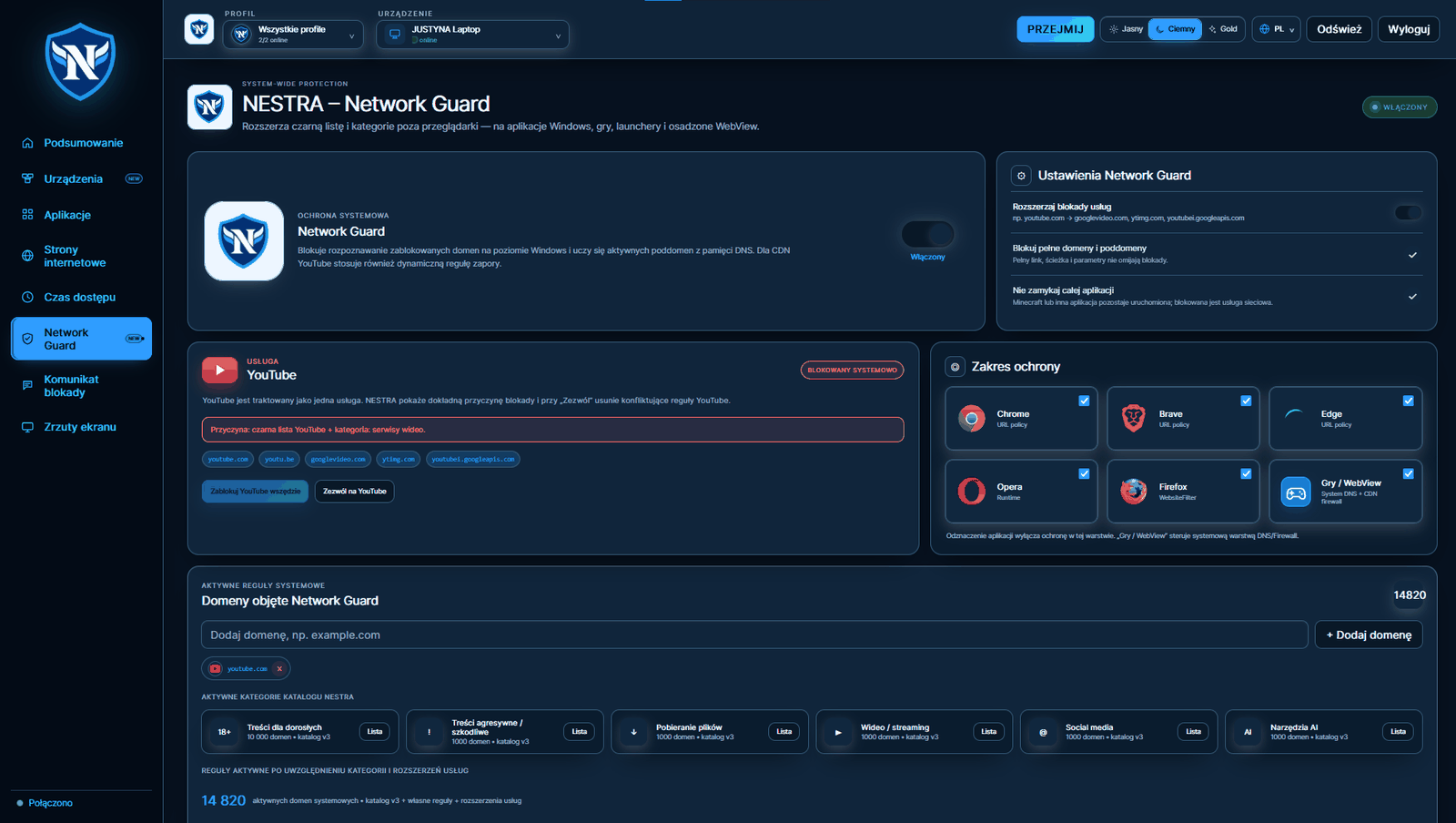
Blocking works at system level — DNS plus a Windows Firewall rule. That is why it covers not only Chrome, Edge, Brave, Opera and Firefox, but also games, launchers and apps with embedded WebView.

  • YouTube is treated as a service — blocking also covers googlevideo.com and ytimg.com
  • The network service is blocked, not the whole app: Minecraft keeps working
  • Full domains and subdomains — a tracking link doesn’t bypass the rule
How Network Guard works
NESTRA dashboard — Network Guard screen with the domain list and protection scope
14,820 active domains: category catalogue v3, custom rules and service extensions
Screen monitoring

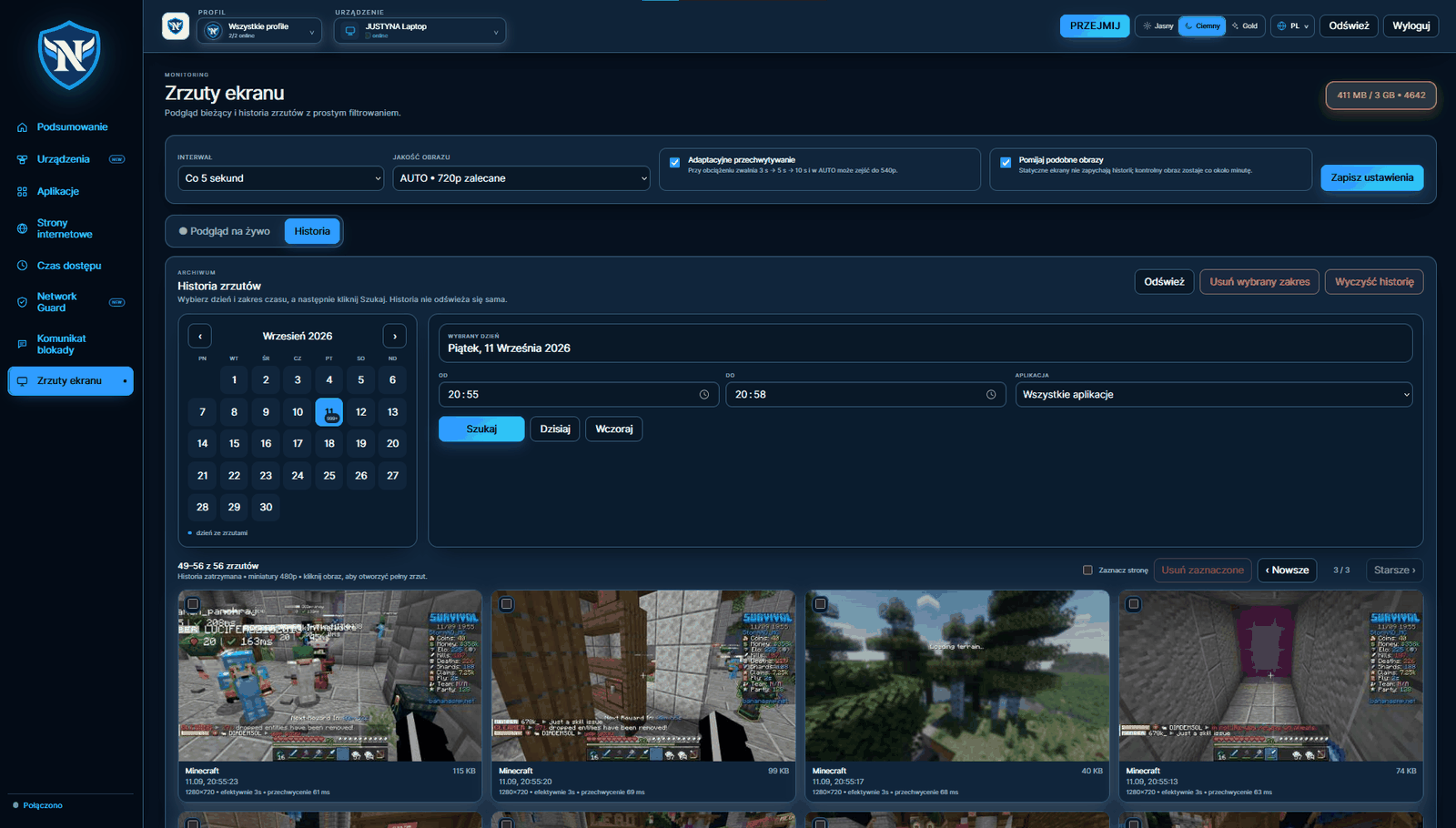
Your child’s screen every three seconds, with history

Frames are saved and can be scrolled back. Adaptive Capture slows the interval under load and skips near-identical frames, so the history doesn’t fill up with an unchanged desktop.

  • Interval from 3 seconds, quality up to 1080p or original
  • Storage limit managed automatically — here 411 MB of 3 GB
  • Clicking a thumbnail downloads the full image
Remote desktop

You take control, not just watch

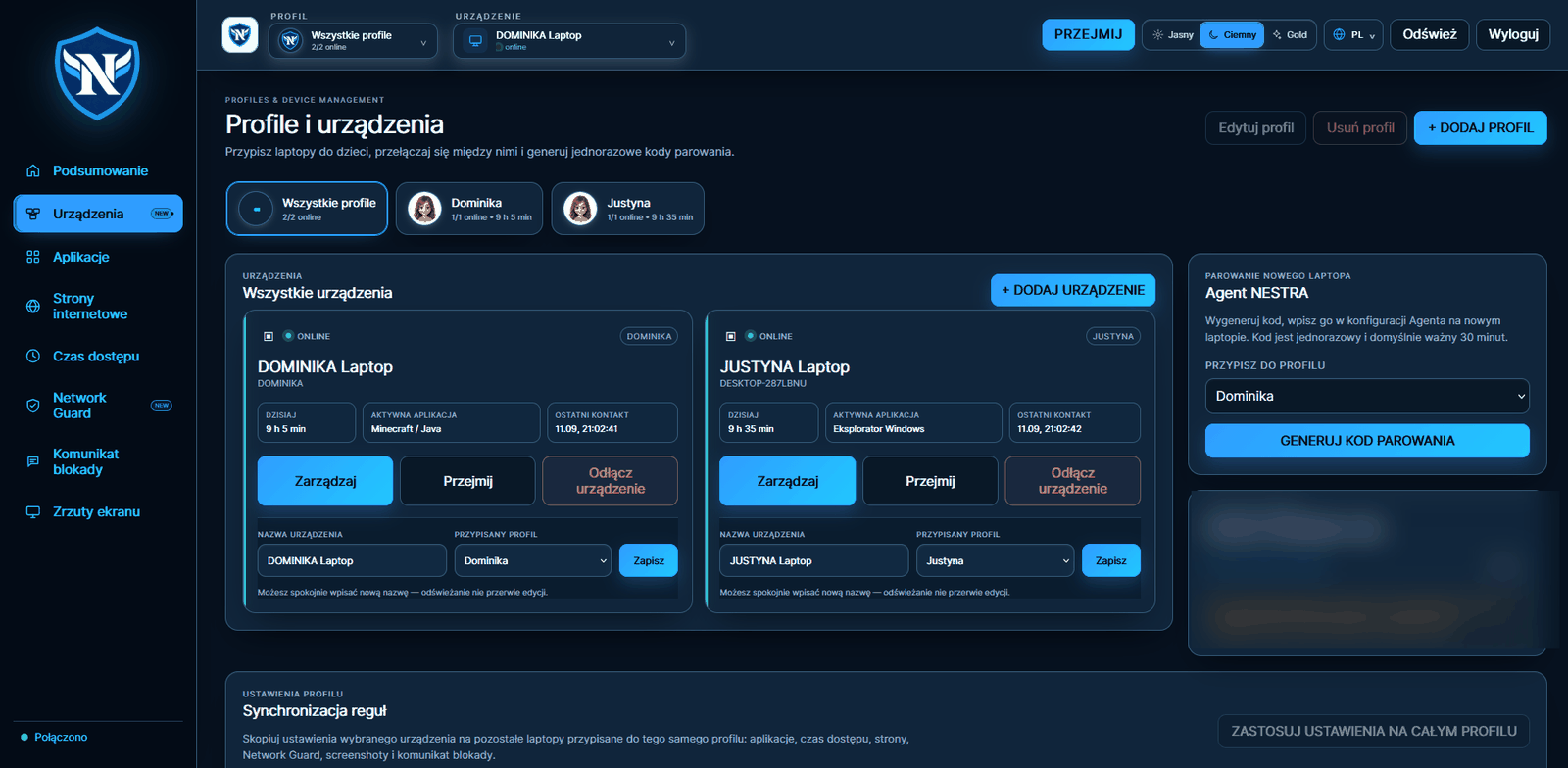
The “Take control” button starts a remote session with screen view plus mouse and keyboard control. Close a game, type the Wi-Fi password or show your child where to click — without going into the room.

  • Mouse movement, clicks, scrolling and typing on your child’s computer
  • One profile can have several laptops; you copy rules between them
Screen monitoring and remote desktop
NESTRA dashboard — screenshot gallery filtered by date and app
Calendar, time range and app filter — 480p thumbnails, full image on click
NESTRA dashboard — profiles and devices with the Take control button
Agreement instead of an argument

Your child asks for extra time, you click

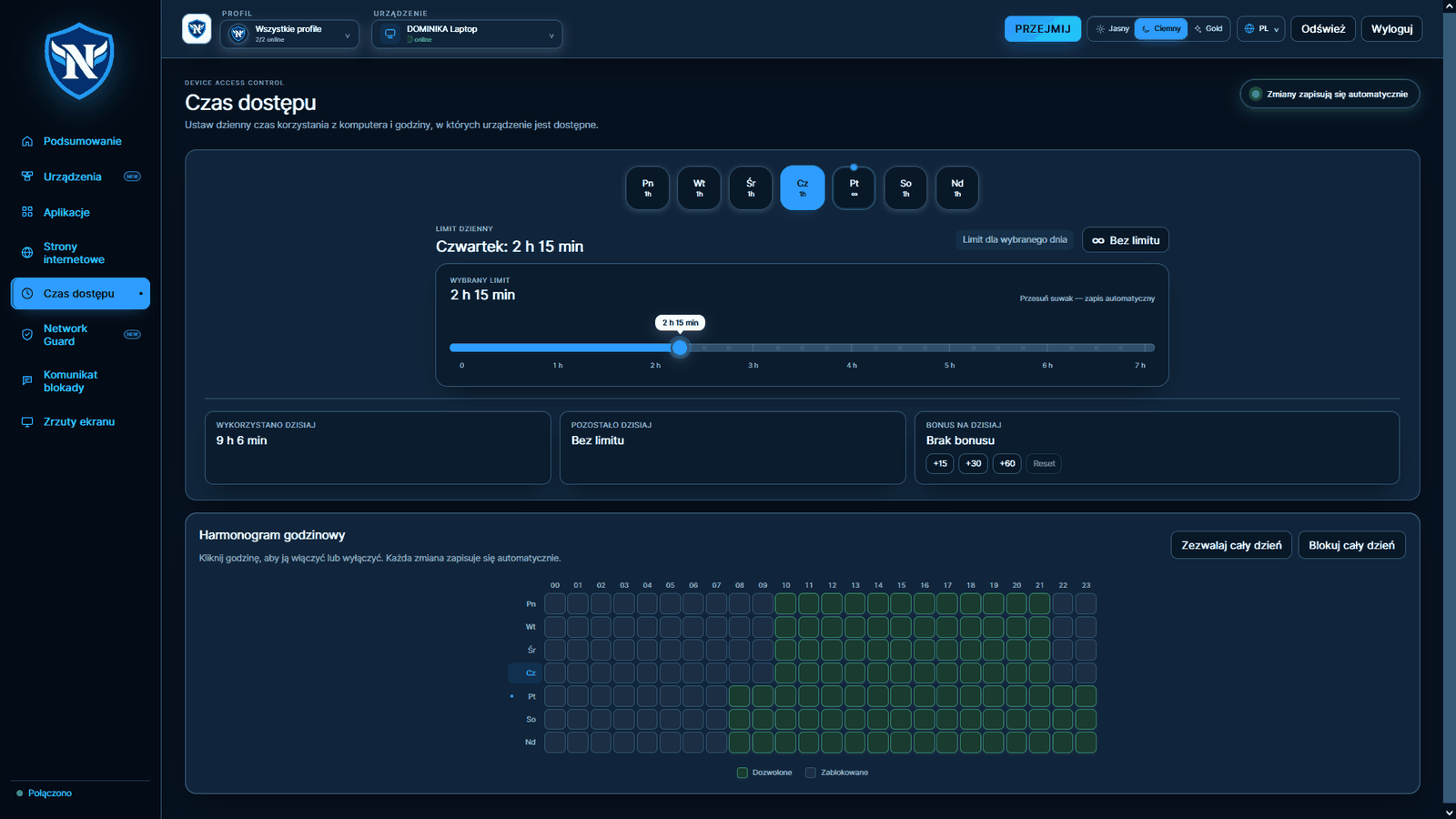
When the limit runs out, your child sends a request from the Agent screen. You see it in the dashboard and add 15, 30 or 60 minutes with one click — or say no. No negotiating through a closed door.

  • A bonus of +15 / +30 / +60 minutes, which you can undo
  • Hourly schedule: a green cell is an allowed hour
  • The daily limit and the schedule work together — access ends when either one requires it
See all features
NESTRA dashboard — daily limit, hourly schedule and time-bonus buttons
A separate limit for each weekday plus a 24×7 hourly grid
At a glance

What NESTRA does on your child’s computer.

14,820domains in active system rules
3 sshortest screenshot interval
6browsers and protection layers covered
24×7cells in the hourly schedule
0passwords we store

These figures come from the v0.10 dashboard, not from marketing material. The category catalogue is updated centrally, so the domain count grows without an Agent update.

The full set

The essentials are here too. All of them.

The network filter is what sets NESTRA apart. Below is what you expect from any parental-control product — and you get it in every plan.

  • Time limits

    A daily pool of minutes and an hourly schedule — separately for school days and the weekend.

  • Blocking programs and games

    Per-app rules: block completely or set a separate time limit for a specific game.

  • Website filter

    Content categories plus your own lists — add study exceptions with one click.

  • YouTube control

    One switch closes the whole family of addresses, including the video servers. No stream keeps playing after only the main site is blocked.

  • Screen monitoring every 3 seconds

    Saved frames from your child’s screen that you can scroll back through. History deletes itself after the period you set.

  • Email alerts

    An email when your child asks for extra time, and when an attempt to get around protection ends in a lock.

We show each of these features in dashboard screenshots — see the full overview.

Tamper resistance

Your child can’t just click “Uninstall”.

Parental control that can be switched off in thirty seconds is only decoration. The NESTRA Agent defends itself on three levels.

Supervised system service

Ending the process in Task Manager does not remove protection — a supervisor starts the Agent again.

Uninstall only with your approval

The installer stops the removal until the device is released in the parent dashboard or you enter the authorisation code.

Every attempt has a date and time

When your child goes looking for NESTRA files or settings, the event appears in your dashboard with the date and time.

Attempt to uninstall the Agent
21:23 msiexec.exe → uninstalling the NESTRA Agent paused

Uninstalling waits until you release the device in the dashboard or enter the authorisation code.

Getting started

Four steps from sign-up to your first log.

  1. STEP 01

    Create a parent account

    An email address and a password. One account covers the whole family.

  2. STEP 02

    Add a child profile

    Give the profile a name. You can assign several computers to one profile.

  3. STEP 03

    Install the Agent and enter the code

    On your child’s computer, run the installer and enter the single-use pairing code from the dashboard.

  4. STEP 04

    Set limits and categories

    Hours, daily time, content categories and study exceptions. Changes reach the device within seconds.

Boundaries

Supervision, yes. Hiding from your child, no.

NESTRA shows you a lot, but it doesn’t pretend it isn’t there, and it doesn’t collect things it doesn’t need. That is the difference between parental control and spyware.

The Agent has a visible icon and its own screen telling your child the computer is protected. There is no hidden mode — and we don’t plan to add one.

What NESTRA does not do

  • We don’t save passwords, including those stored in the browser
  • We don’t turn on the camera or microphone
  • We don’t collect GPS location

You can delete screenshots in the dashboard at any time, and history deletes itself after the period you set.

Pricing

One yearly payment. Every feature in every plan.

  • Plans differ only in the number of devices
  • Network Guard, screen monitoring and remote desktop in every plan
  • Start with a free trial
Start today

Pair your first computer today.

Create a parent account, add a child profile and see your first log this evening. No sales call.