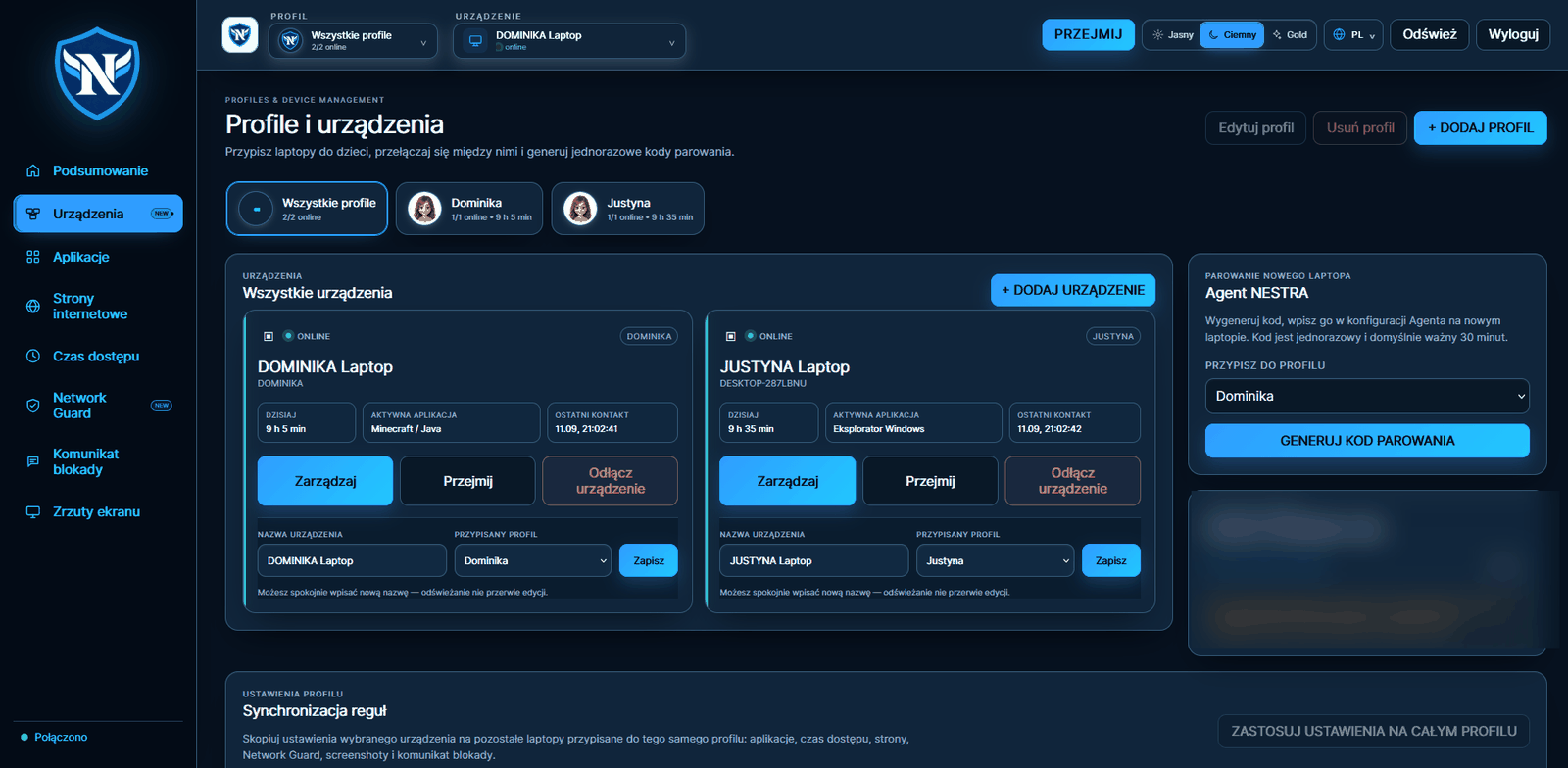
The entire dashboard, screen by screen.
Instead of a list of buzzwords — screenshots from a working installation. Each screen is described by what it actually does.
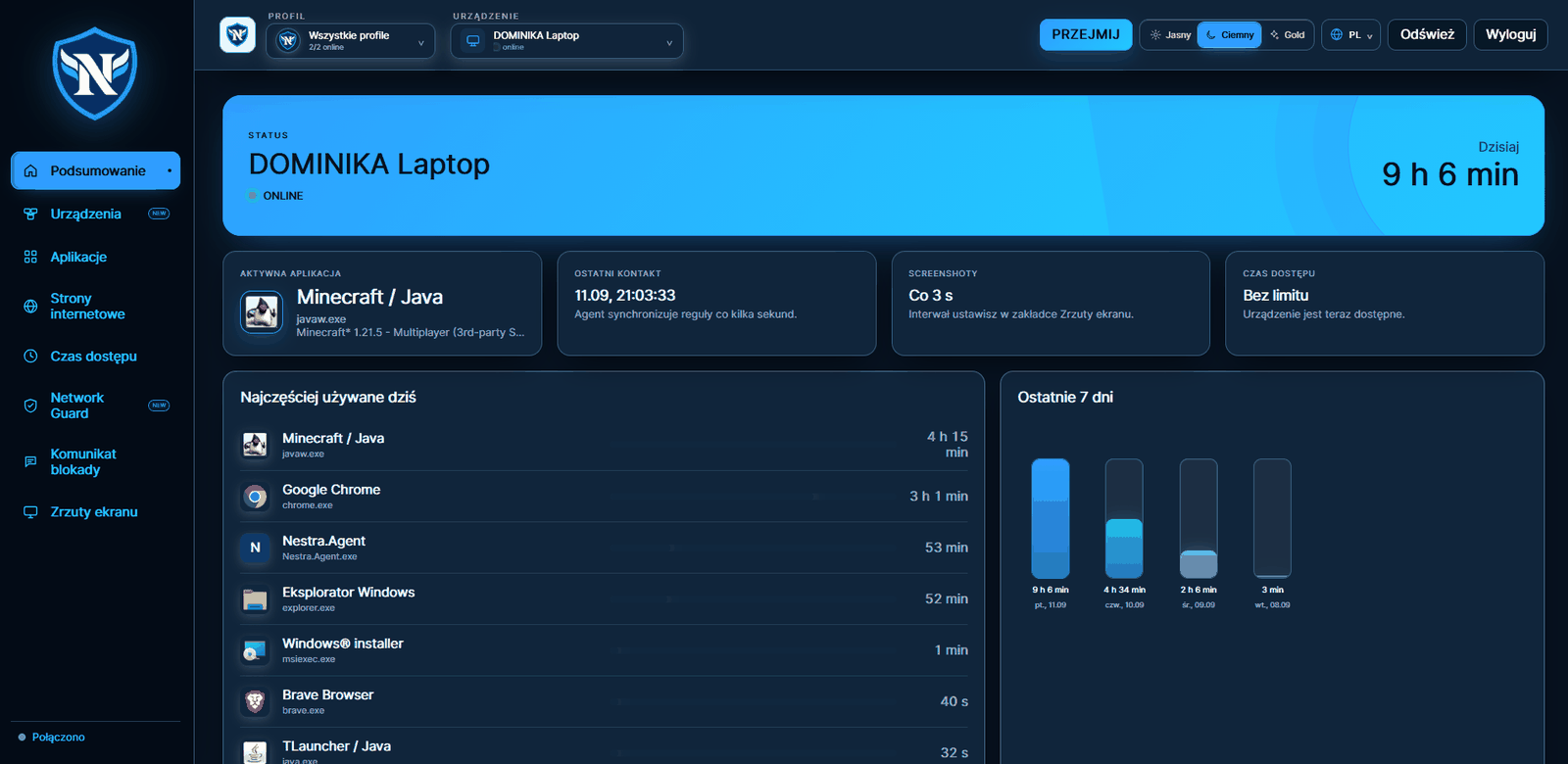
The first screen after logging in
You see screen time, the active application, the last time the Agent checked in and the limit status. Below that are today's app ranking and bars for the last seven days.
- Device status: online or offline, with the time of the last contact
- Application ranking with time down to the second
- Seven days of history on one chart
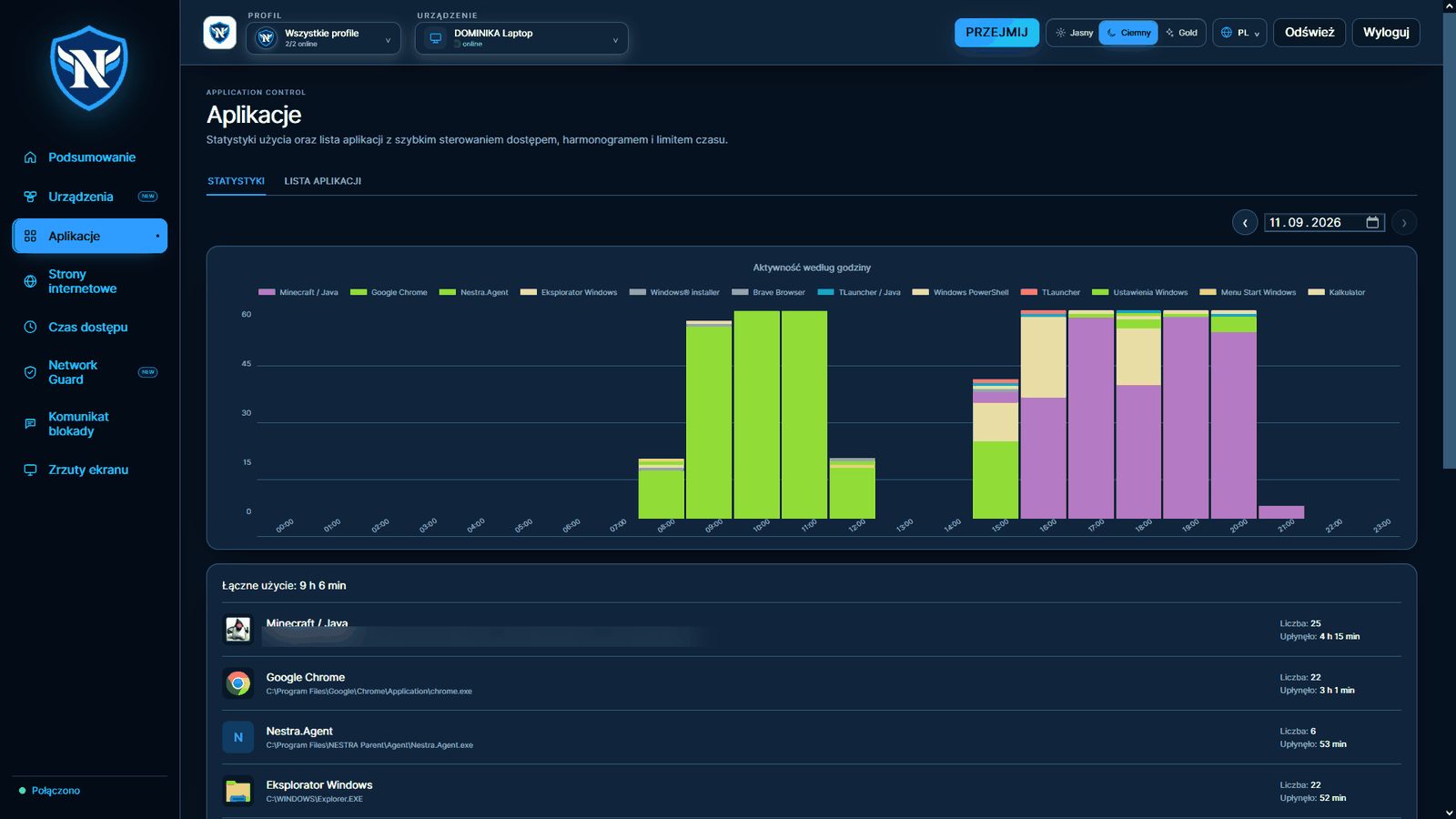
Hourly statistics and rules for programs
The chart shows activity broken down by hour and application. From the list you set access, a schedule and a separate time limit for a selected program.
- A separate rule for each executable file
- Extra time granted to a single application
- Mode in which newly detected programs are blocked by default
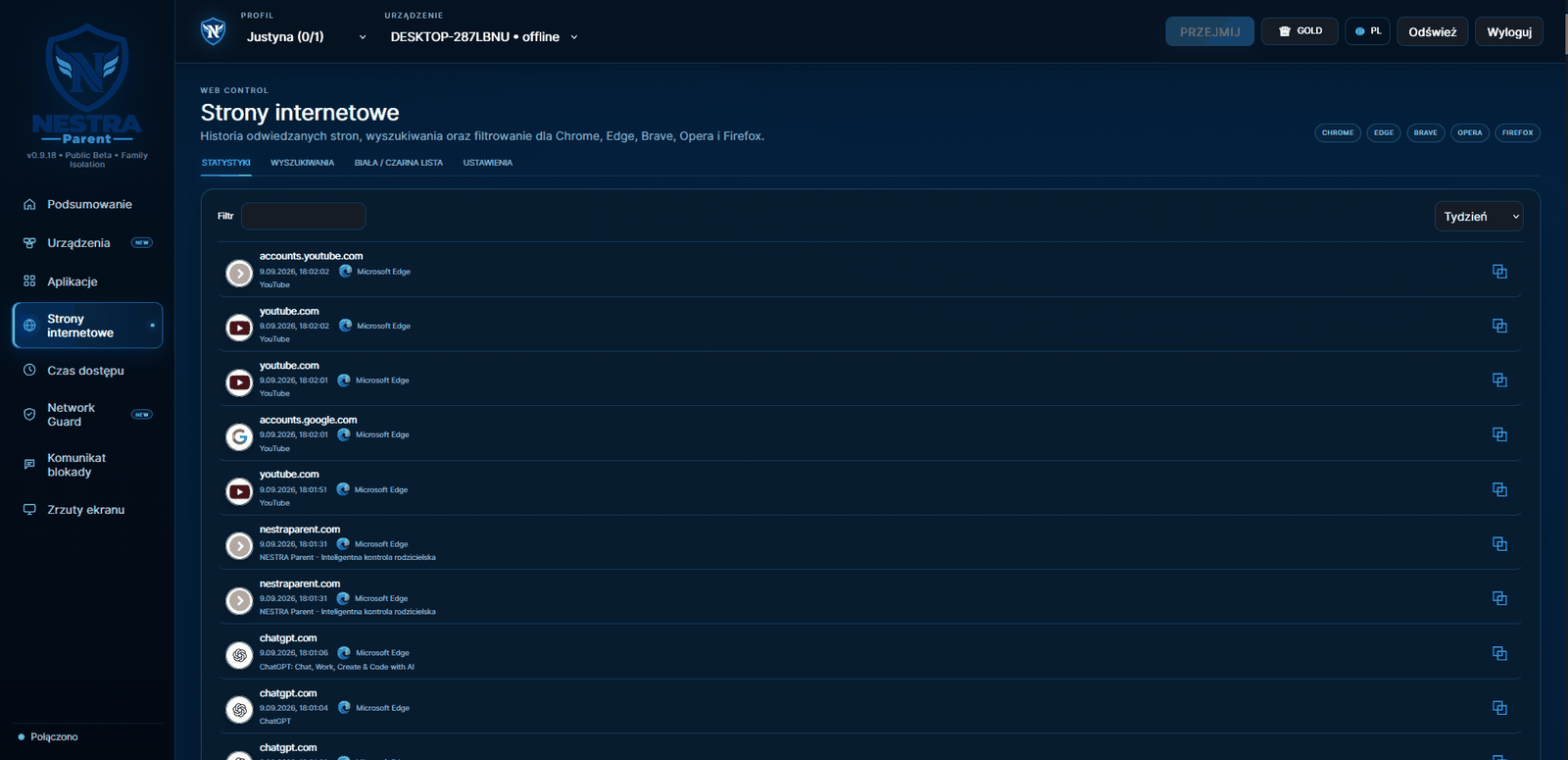
History, searches and lists
Full history split by browser, with a separate tab for search phrases. Allow and block lists work for domains and subdomains.
- Text filter and time range: day, week or custom
- A separate tab showing what your child searched for
- Filtering settings per browser
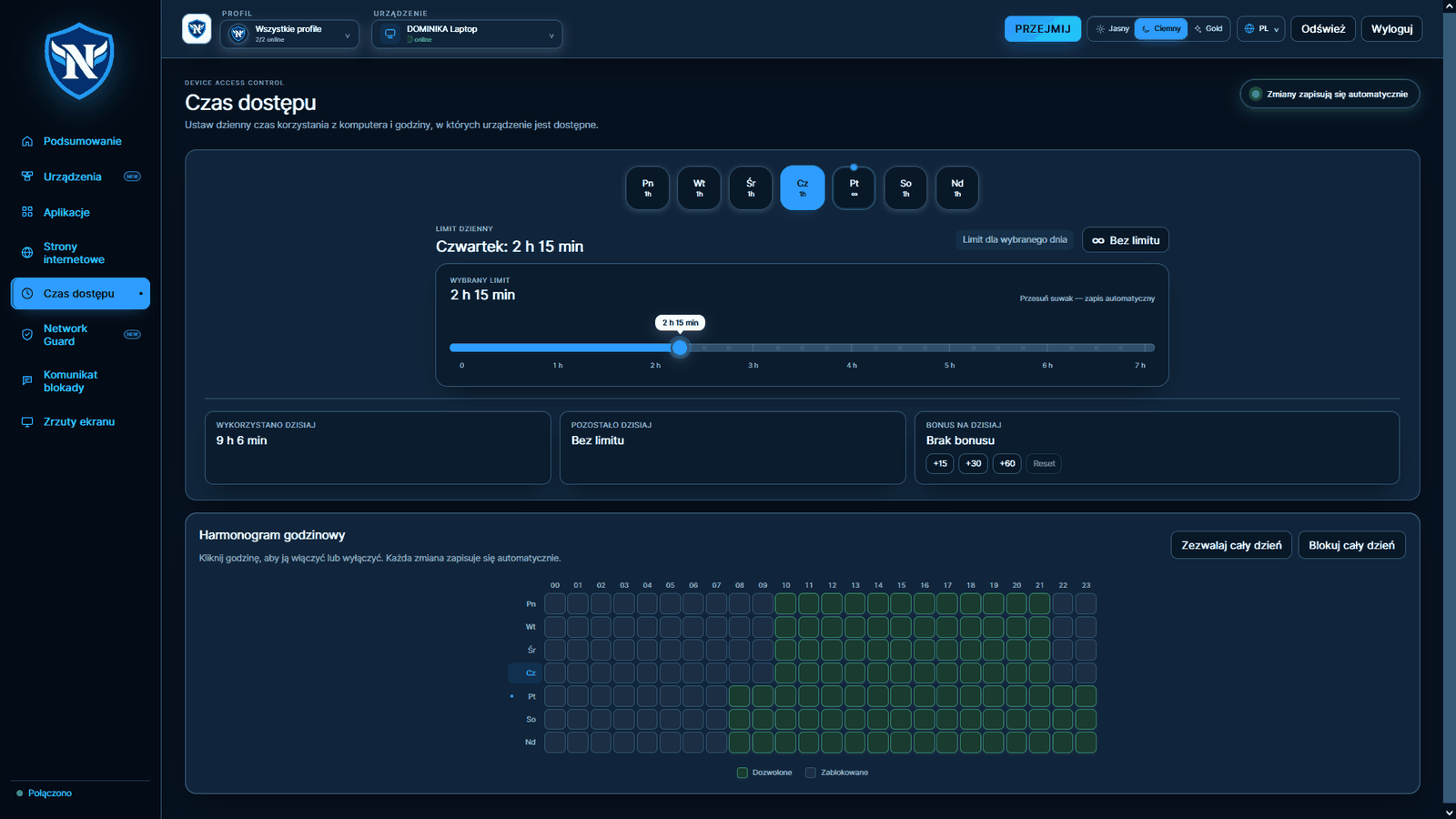
Daily limit and hourly grid
For each day of the week you set a separate minute limit. Below it, a 24-hour-by-7-day grid decides when the computer can be used at all.
- The “used” and “remaining” counters update live
- Bonus +15 / +30 / +60 minutes for today, with an undo button
- Allow or block the entire day with one click
Your child knows why access is blocked
You decide what appears on the screen your child sees after an application is blocked. The {{app}}, {{reason}}, {{schedule}} and {{limit}} fields insert the program name and the actual reason.
- Your own heading, message and button text
- The message appears only when there is a real attempt to launch the app
- You can turn it off if you prefer silent blocking
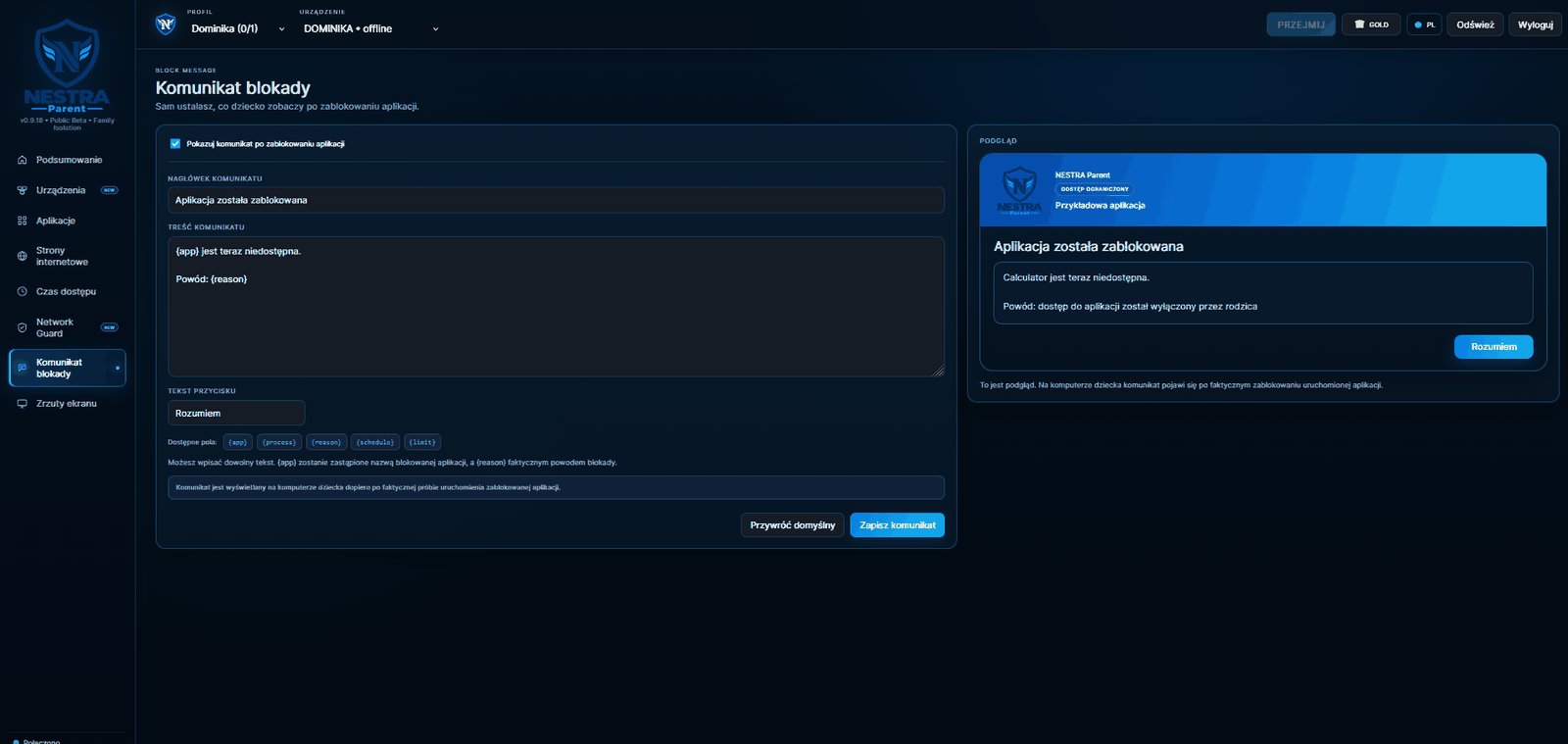
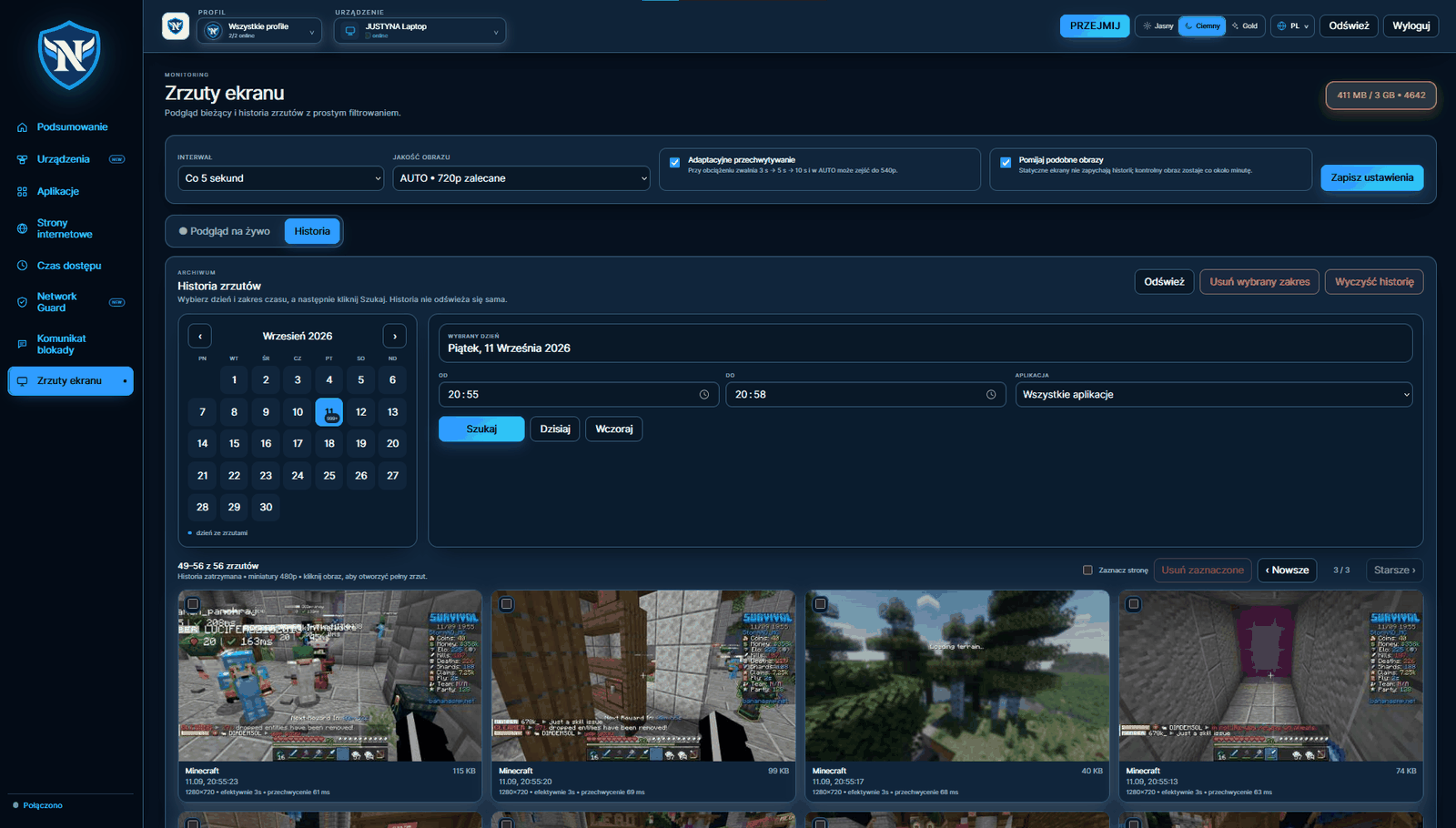
Image history with filtering
You choose the interval, quality and power-saving mode. Browse history by date, time or application.
- Shortcuts: today, yesterday, last hour, 3 h, 6 h, custom range
- Similar frames are skipped — a reference image is still kept every minute
- Delete the selected range with one click
One account for the whole family
A profile is a child; a device is a laptop. One profile can have several computers, and you can copy settings between them with one click.
- One-time pairing code valid for 30 minutes
- Releasing a device from the dashboard unlocks Agent uninstallation
- Switch between children without logging out