
See the screen. Or take full control.
Two separate things that are often confused. Screen monitoring means saved frames with history. Remote desktop is a session in which your mouse and keyboard control your child's computer.
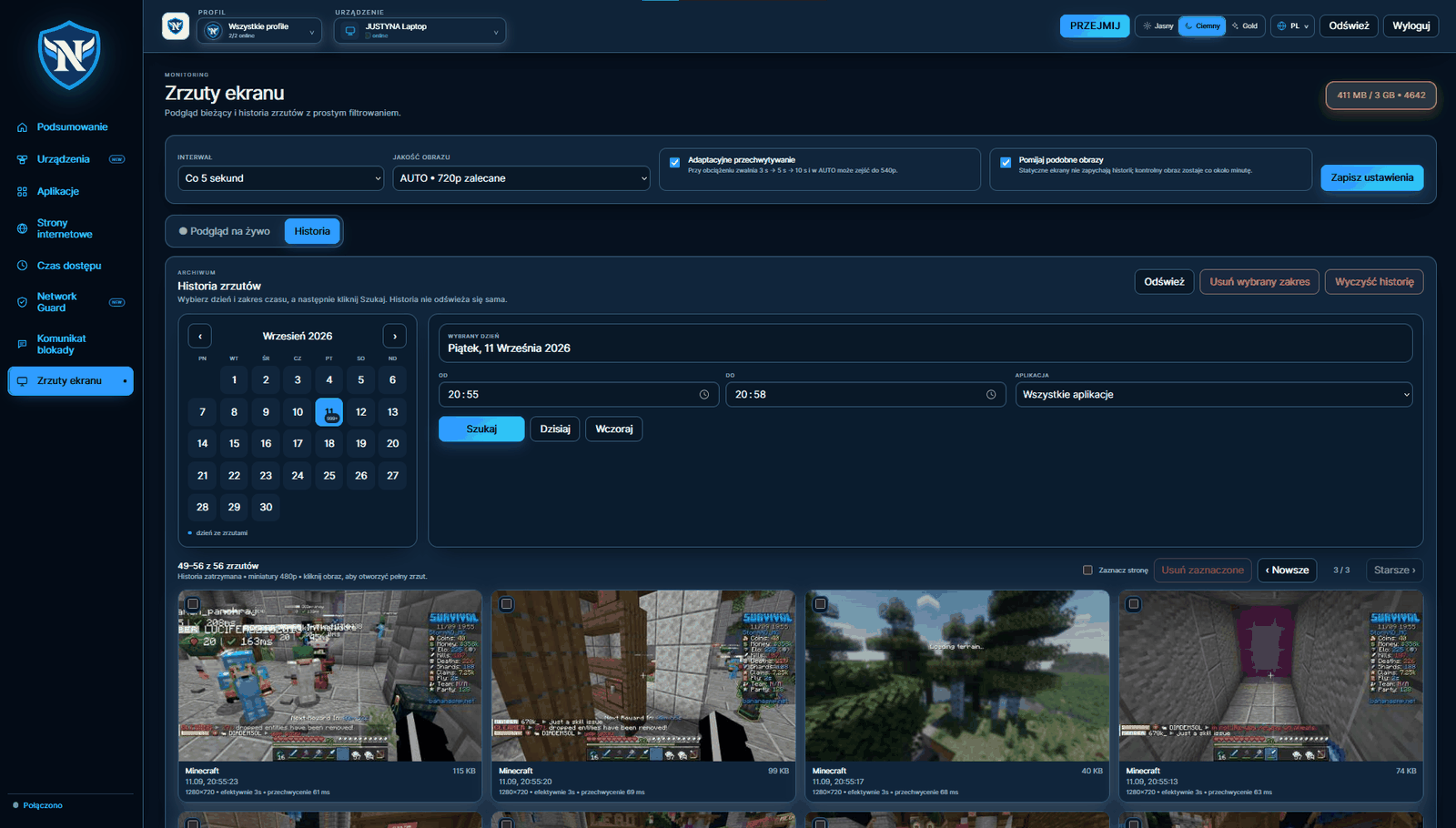
Image history, not just a single live view.
Frames are saved, so you can go back to an evening when you were not at home. That is usually more useful than watching in real time.
Interval from 3 seconds
You choose it yourself. The shorter the interval, the more storage the history uses.
Adaptive Capture
Under load, the interval automatically increases: 3 s → 5 s → 10 s, and resolution can drop to 540p. The Agent does not compete with a game for resources.
Skipping similar frames
An unchanged desktop does not fill the history, but a reference image is still kept roughly once a minute.
Storage limit
History is deleted automatically after the threshold is exceeded. You can also delete a range manually.
“Take control” is a full session, not just a view
Once the session starts, the child's screen is sent to the dashboard and your clicks and keystrokes are sent back to that computer. You can close a game, change a setting or enter the Wi-Fi password.
- Mouse movement and clicks — left, middle and right button
- Mouse-wheel scrolling
- Individual keys and text input
- The session ends when you tell it to
After a profile is deleted in the dashboard, any active remote session is terminated — that is an intentional boundary, not a side effect.
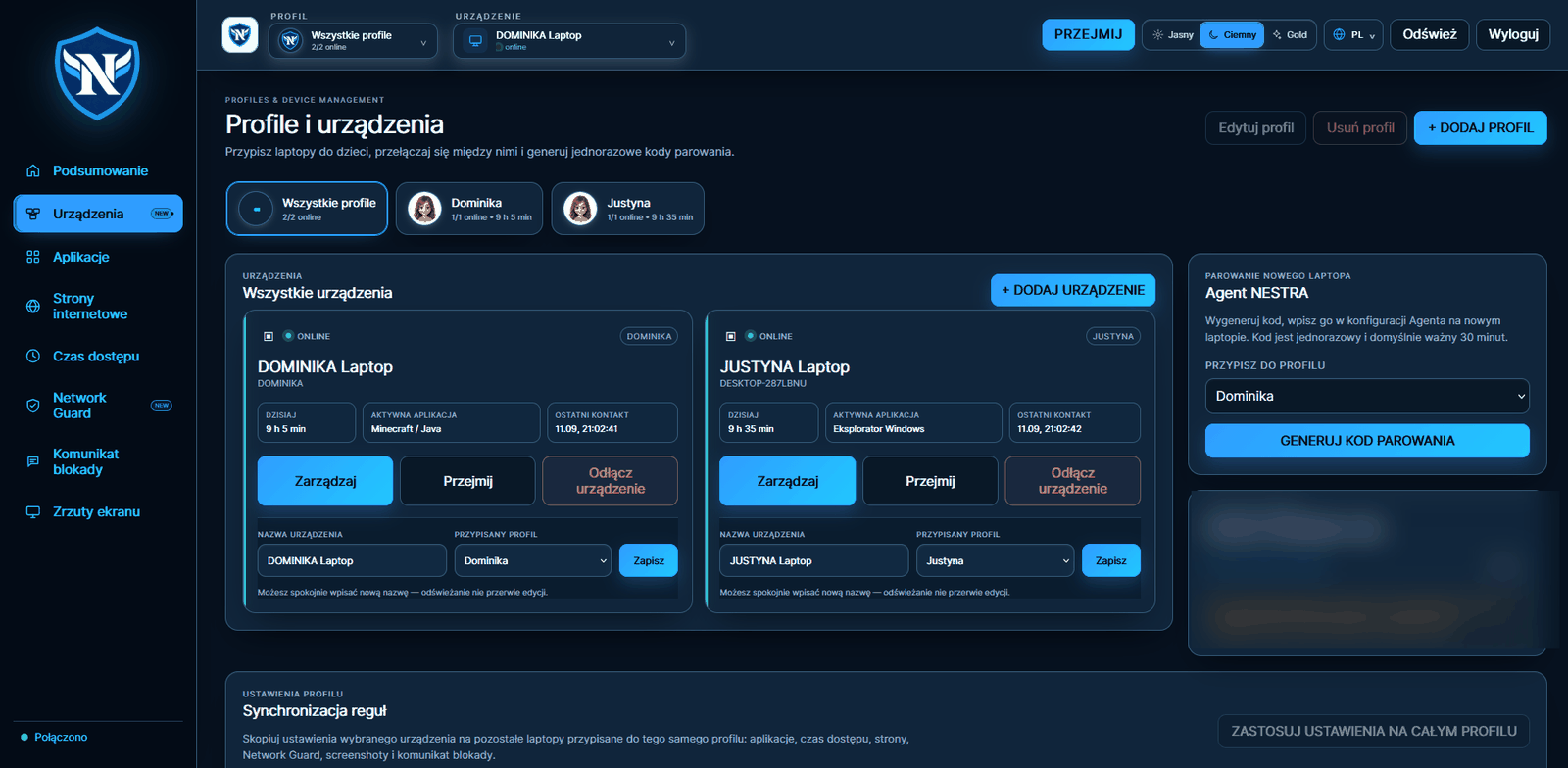
Your child can see that protection is active.
The Agent has a visible icon and its own information screen. There is no hidden mode and we do not plan to add one — that is the difference between parental control and spyware.
Even with screen monitoring enabled, NESTRA does not access things it does not need.
- We do not save passwords, including browser passwords
- We do not access files or documents on the drive
- We do not turn on the camera or microphone
- We do not collect GPS location
Data is stored on servers in the European Union. You can delete the account yourself from the dashboard — together with all history and saved frames.